Showing posts with label ROM Reviews. Show all posts

SGS2 JB ROM Review: Super Nexus Build 2 by Faryaab

Posted by Unknown On Sunday, September 16, 2012 2 comments

Knowing @Faryaab and his previous work on F1 Galaxy Nexus, I knew that Super Nexus was going to showcase what he does best - a raw Android experience. Super Nexus does just that and offers Jelly Bean on a buttery platter. For an early release, the Super Nexus is an impressive custom JB ROM.

Version reviewed in this post: Super Nexus BUILD 2
Build date: 08-11-2012
Developer: Faryaab of XDA Forum
Original XDA thread here


Pros


  • What works: WiFi, Camera, Video Recording, GPS
  • Stable. Force closes are very rare. Most FCs are due to an app's incompatibility with Jelly Bean and therefore the app developer's fault (not Faryaab). On that note, I say "screw you Gameloft."
  • Good battery life. My phone lasted approximately 1 day 6 hours on light use and 15 hours 22 minutes on light to moderate use.**
** During light use, phone was: Awake (4h13m), Screen On (2h36m), WiFi On (5h26m). During light to moderate use, phone was: Awake (4h37m), Screen On (2h 26m), WiFi On (4h59m). Battery info c/o Battery Monitor Widget.

  • Real slick. Everything loads fast - even the Gallery.
  • Features all the Jelly Bean goodies such as Google Now and a much-improved notification system. In case you're wondering, they work smoothly on Super Nexus.
  • Light-weight and bloatware-free.
  • Clean UI. More professional looking than Ice Cream Sandwich.


Cons


  • Bug: Gallery app sometimes force closes while being used by other applications (see Gallery below for more info)
  • No toggle shortcuts on the Notifications Drawer. This is the drawback of aiming for a vanilla Jelly Bean experience.
  • Non-resizable widgets. Maybe I just got used to Apex Launcher?
  • You can't change the lock screen wallpaper. Whatever the home screen has, the lock screen gets.

OVERVIEW


Lock screen
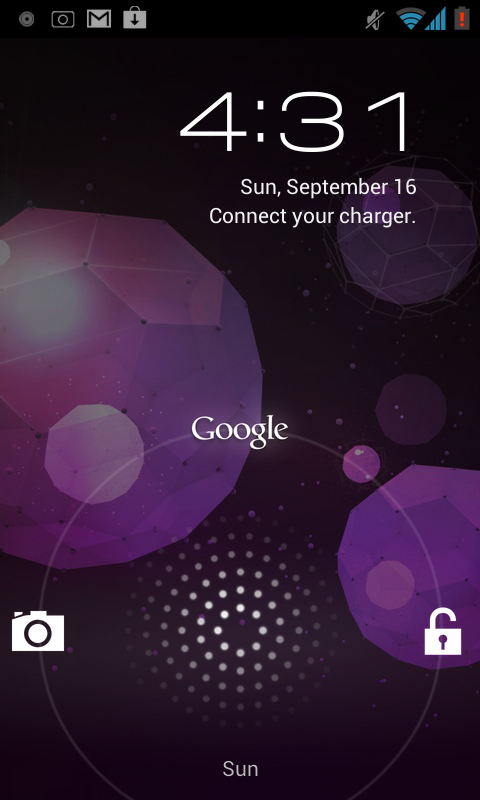


  • Access shortcuts to the Camera app (left), Google Voice Search (top), and phone unlock (right).
  • Notifications Drawer drops down from here.

Home screen and dock


  • Smooth scrolling. No lags whatsoever.
  • Place apps on top of each other to instantly create folders. Each folder can hold up to 16 applications. Folders can be renamed.
  • Change wallpaper from home screen.
  • Widgets are non-resizable.
  • Place folders on the dock bar. With space for four folders, that means the dock can hold a maximum of 64 apps!

Notifications Drawer


  • Displays time, day of the week, and date.
  • Shortcut to system settings.
  • Swipe to individually remove notifications.
  • Clear all notifications in one click.
  • Displays preview of emails and messages.
  • Shows Google Now cards.
  • Missed calls have shortcuts to call back or reply with a message.
  • Access app info by giving the notification a long press. Useful for identifying source of spam notifications.

Recent Apps View


  • No task manager.
  • Swipe to remove an app from the list.

App Drawer
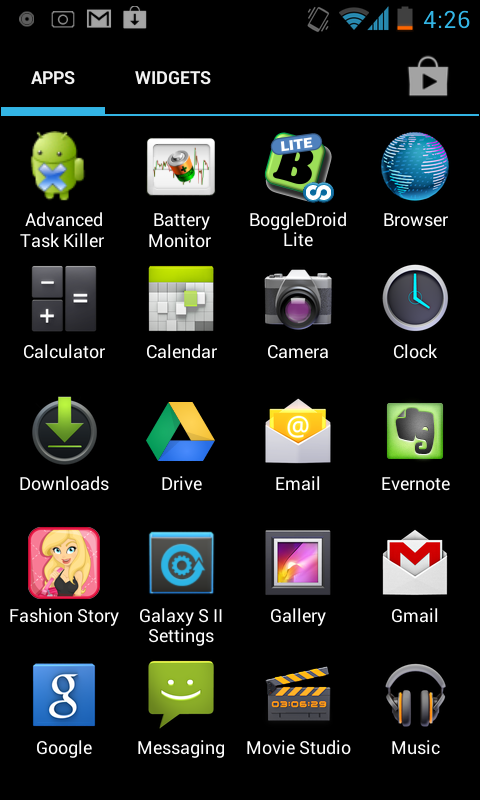

  • Apps and Widgets found in separate tabs.
  • Shortcut to Play Store (upper right)
  • Smooth scrolling.

Messaging, Contacts, and Phone Dialer


Camera


  • Shortcut to Gallery.
  • Flash: Auto, On, Off
  • Adjust White Balance, ISO, Exposure, Scene Modes, Focus Mode, and picture size
  • Apply color effects: Aqua, Negative, Sepa, Mono

Gallery


  • Bug: FC's while being used by another app. Like when viewing the Gallery from the Camera app, editing photos, or setting a gallery photo as a wallpaper. Happened to me on all three occasions and it doesn't happen instantly. Takes a few seconds before it does.
  • Loads fast.
  • Has shortcut to camera app (upper right).
  • Play photos in slideshow.
  • Share photos individually and by group. Remembers the app you last shared photos with.
  • Change orientation and crop photos.
  • Set picture as.
  • Edit photos in photo editor (see Other Applications below for more info.)

Music


  • When playing music, it shows up as shortcut on Notifications Drawer. Sadly, the notification shortcut doesn't have music controls.
  • Party Shuffle.
  • Add to playlist.
  • Delete songs from your phone/memory.
  • Adjust sound effects.
  • Set music as ring tone.

Internet Browser


  • Automatically signs in to your Google account. Syncs saved bookmarks.
  • Swipe to remove open page from tabs view.

Other Applications


Google Now. Brings up cards displaying information on weather, traffic, public transit, flights, sports, calendar appointments, translations, currency, time at home (when traveling to a different time zone), and nearby places that may interest you.


Voice Search. Perform actions with the right commands. Search your phone or the web for apps, images, and more!


Galaxy S II Settings
  • Configure radio. Choose from UMTS only, HSDPA only, and HSDPA + HSUPA
  • Adjust screen. Change colors, touchscreen sensitivity, and enable/disable backlit keys
  • Calibrate sensors.
  • Set vibration intensity of haptic feedback.
  • Enable/disable passive audio out on dock.
Movie Studio. A video editing app that lets you merge different videos in one clip, add titles and subtitles at specific intervals, apply filters, and add music.


Photo Editor. Can only be accessed from Gallery. Lets you apply an assortment of photo filters (with adjustable intensities).


News & Weather. Brings you updated weather and news reports based on location.

Ski ROM For SGS2: v1 ROM Review

Posted by Sibyl A.S. ♡ On Wednesday, July 18, 2012 4 comments
Ski ROM may be a Samsung-based firmware but it was made out of a refreshing concept I haven't seen in most ICS builds - a transparent user interface. It still has that unmistakable TouchWiz feel to it which happens to be hated by most modders. HOWEVER (and that's one big however), this is still a first version and from what I've seen from it, things are looking promising! For an initial release, I'm pretty impressed with it.

Version reviewed in this post: Ski ROM v1 (XWLPG)


Build date: 06-30-2012

Developer: android_isda_shit of XDA Forums


Original XDA thread here

PROS

  • What works: WiFi, Data, Bluetooth, Camera, Video Recording, and GPS. Pretty much everything since this is Sammy-based.
  • Very stable. Didn't get any force closes at all. Well, except for Twitter which just happened once in 7 days of use.
  • Different look! All thanks to the LG Launcher and transparent UI present in the following:
    • Homescreen
    • Apps Drawer
    • Notifications Drawer
    • Phone Dialer
    • Contacts
    • Messaging (Inbox only)
    • Calculator
    • Clock
    • Gmail
    • Music Player
    • Play Store
    • YouTube
  • Amazing battery life. My phone lasted around 26 hours on mild to moderate usage. Lasted for 16 hours when WiFi was left on for 10 straight hours for the sake of Skype.
  • Scrollable toggles

CONS

  • Bugs: You can't change the Lockscreen wallpaper. It remains the same as the Homescreen wallpaper.
  • The transparency of some apps interferes with readability of text. A good example is Gmail. TIP: Just use a basic one-color wallpaper :)
  • Needs more improvement on theming IMO. The battery icon for instance looks cartoon-like. When you have a low battery, you can't tell from the icon how much battery is left because it only displays a red battery with an "X" in the center.
  • Gmail, Google Play Store, and YouTube are installed as system applications. This is not the CON yet just keep reading. Now If you decide to update these applications, their transparency will be lost since you are basically replacing them. TIP: Do you want the original transparent look back? Just uninstall the update by going to Settings > Applications > All > (Select App) > Uninstall Updates. This will uninstall the update and revert the app to its original transparent UI. 
  • Sometimes, there is a slight lag when launching applications - particularly those that are transparent. I also noticed that lags are highly likely when using a live wallpaper.

PREVIEW

Lockscreen


Of course, it still has the standard Slide lockscreen which you can change to Face Unlock, Pattern, PIN, and Password security. The option to not use any lockscreen at all is there too. Unfortunately, what you can't change is the wallpaper. But this will probably get fixed in the next update. Keep those fingers crossed!

Home Screen and Dock


Where do I begin? It looks different! And I mean that in a good way. Sure, it still has that 5-icon dock but if you take a closer look, the icons were replaced with LG's. Even the Home Screen shares this LG Optimus look. To edit animation options, screen transition, and the wallpaper, press the Menu touch button from the Home Screen and select "Home settings". If you long press on an empty space of the Home Screen, you will be given the option to add apps and widgets as well as change the wallpaper.

Status Bar and Notifications Drawer


Icons on the Status Bar are either gray or green. I can live with the green but I don't like the battery icon. When the phone has a critically low battery, it would turn red with an "X" symbol in the middle. No percentage will be displayed. I think most of us would prefer to know just how much is left of the battery even if it were less than 10 percent.

Toggles on the Notifications Drawer are either green (activated) or white (deactivated). They are set on a semi-transparent background and scrollable. Included in the toggles are WiFi, Mobile Data, Bluetooth, GPS, Sound, Vibrate, Auto Rotation, Airplane Mode, Auto Brightness, Do Not Disturb, Screen On Timeout, WiFi Hotspot, Sync, Flashlight, Reboot Options (Reboot, Recovery, Download), and Shutdown. 

Notifications will be displayed on an even more transparent background which looks sexy by the way. 

Recent Apps View


There's nothing new here. You can still access the Task Manager :)

Apps Drawer


Again, it is powered by the LG Launcher that comes pre-installed with Ski ROM. You can access all applications, just downloaded apps, or widgets by selecting tabs on the upper screen. Apps can be rearranged individually by selecting the Settings icon on the upper right corner. To arrange apps in chronological order, press the Menu touch button from the Apps Drawer and select "Reset." Under the same menu, you can also select to "Show more icons" on each page as well as access the App and System settings.

Messaging, Contacts, and Phone Dialer


The Inbox is transparent but Message threads have the standard Sammy theme. I can't say the same for Contacts and the Phone Dialer which has transparent themes all-the-way.

Camera

Gallery and Music


The pre-installed Gallery looks like Samsung Gallery but it is named "SBEDemo" which stands for Sony Bravia Engine Demo. It loads faster than the stock Gallery for Samsung but I can't confirm if it is in fact what it says it is, considering it looks exactly like the stock Sammy Gallery. Can anyone confirm this? Anyway, the Music player is clearly stock Samsung but it has the same transparent theme used in most applications.

Internet Browser


Other Pre-Installed Apps

  • CWM Manager
  • SuperSU

VIDEO WALKTHROUGH


My voice is not in this one video walkthrough, sorry! I didn't have enough time. You can subscribe to my YouTube channel.

NOTE: The dev has been banned from XDA Forums. If you want to help bring him back, you can sign this petition. The petition was posted by another member of XDA and was not created by me.

SGS2 ROM Review: Pure ICS v7.5 [XWLPG]

Posted by Sibyl A.S. ♡ On Monday, July 02, 2012 8 comments


Pure ICS is a custom ROM that brings an Ice Cream Sandwich experience on top of a Samsung-based firmware. Here I'm going to review the standard "light" version which only includes few stock Samsung apps. But there is also an AOSP package if you don't mind having stock Samsung apps aka "bloatware".


Version reviewed in this post: Pure ICS v7.5 (XWLPG)


Build date: 06-16-2012


Developer: Spike_M of XDA Forums

PROS

  • What works: WiFi, Data, Bluetooth, Camera, Video Recording, GPS
  • Fully-themed even though it is Samsung-based!
  • Apex Launcher allows further customization of UI
  • Has FM Radio, Voice Recorder, CWM, and SuperUser SU
  • Good battery life. Mine lasted more than 24 hours with some WiFi, calls, texting, and mostly on standby.

CONS

  • Bugs: On the Gmail app, there was this one time that emails would go blank if you attempt to scroll to view the entire message. Again this only happened once after 7 days of use :)
  • The ROM has stopped development - so I've heard :(

PREVIEW

For a 5-minute video walkthrough of Pure ICS, please check the bottom of this post :)

Lockscreen


Since this is a Sammy-based ROM, you can choose from the standard Slide, Face Unlock, Pattern, PIN, and Password lockscreen. You can access the Notifications Drawer from the Slide lockscreen.

Home Screen and Dock


Since Pure ICS has an Apex Launcher, you can control the number of docks (max 5), number of dock icons (max 7), and elastic scrolling just to name a few. You can even hide the dock completely! As for the home screen, you can control the number of screens (max 9), choose the default screen, resize widgets, among many other functions. To access the customization settings for the home screen and dock, simply go to Apex Settings > Homescreen settings or Dock settings.

Status Bar and Notifications Drawer


The status bar is Holo-themed which means that the time, battery, phone signal, and WiFi have a light blue color on black background. The screen brightness can also be adjusted from the status bar by holding and sliding your finger across. You can't customize the notifications drawer but there's really no need to. A lot of useful toggles are already on there. All you have to do is swipe across them.

There's are toggles for the standard WiFi, Mobile Data, Bluetooth, and GPS along with Sound Profiles, Autorotate Screen, Airplane Mode, Auto brightness, Screen On, Hotspot, Sync, Flashlight, Reboot, Recovery, Download Mode, and Shutdown. Most toggles act as shortcuts to their individual settings. But you can access all Settings by clicking the Settings Icon below the toggles.

Recent Apps View


As you can see, you can access the Task Manager from here - something I really like about Samsung-based ROMs.

Apps Drawer


There's still some bloatware on the standard edition of Pure ICS but they're mostly useful apps. If you want all Samsung apps, you can install the AOSP version of Pure ICS. The stock Samsung apps installed in the standard version I reviewed are as follows: Calculator, Calendar, Camera, Clock, Contacts, Downloads, Email, FM Radio, Gallery, Internet, Memo, My Files, Phone Dialer, Photo Editor, Task, Task Manager, Videos, and Voice Recorder.

Messaging, Contacts, and Phone Dialer

First off, the annoying yellow-blue-and-gray theme of the Messaging app is long gone. Spike_M managed to make it gray-and-black which I personally like better than the blue-on-white theme of stock ICS. The same theme is used on Contacts and Phone Dialer.


Gallery


Pure ICS has the stock Samsung Gallery since it is a Sammy-based ROM. Sorry but I just don't like it.

Internet Browser


The ROM also has a stock Internet browser which I actually like. It automatically signs you in to your Google account and syncs bookmarks from your Google Chrome for PC.

Camera

Other Pre-Installed Apps

  • CWM Manager - for backing up, restoring, and deleting backups, reboot options, installing APKs, flashing kernels, and flashing stock firmware.
  • SuperSU - grants root access

VIDEO WALKTHROUGH

Here's a 5-minute walkthrough of Pure ICS. I'm sorry if you hear some trucks or cars passing by :D Our house is right in front of the highway and we have this *antique* home made entirely of wood so sound easily gets through. I'm thinking about looking for a pair of headsets that eliminate background noise :) Not sure if they even exist lol.


SGS2 ROM Review for F1 GalaxyNexus

Posted by Sibyl A.S. ♡ On Sunday, June 24, 2012 5 comments
(image source)


F1 GalaxyNexus is based on the original ICS code released by Google. The version reviewed in this post is based on the latest ICS firmware, Android 4.0.4. If you want to get a Galaxy Nexus experience on your phone, this would be a great option.

Version reviewed in this post: 05-06-12 (Build Date)

Developer: Faryaab of XDA Forums.

PROS

  • What worked: WiFi, Data, Bluetooth, Camera, Video Recording
  • Light. Only 70MB+.
  • Loads fast!
  • Holo Theme
  • Stock ICS everything.
  • Great battery life. Mine lasted 24 hours on low lights and some WiFi. Mostly on standby though.
  • Galaxy S II Settings app lets you switch type of data connection, adjust screen colors, modify touchscreen sensitivity, calibrate sensors, and turn off touch lights.
  • Restart to Download and Recovery mode from Power options.
  • Hide toggles from Notifications Drawer.
  • SuperUser is pre-installed

CONS

  • Bugs:
    • After a full week of use, there were 4 instances where I noticed my phone turned off for no apparent reason. Not sure if it's the ROM though. It could be my phone :(
    • Other known bugs as cited by TeamHacksung.
  • Notifications Drawer has its disadvantages:
    • Toggles are limited to tabulated layout.
    • There are only five toggles: WiFi, Bluetooth, GPS, Data, and Autorotate.
    • Toggles don't have shortcuts to individual settings. There's only one shortcut to access all Settings
    • Each time your phone restarts, you have to long press on the Settings icon to show toggles.
  • No underclock/overclock settings
  • No file manager pre-installed. FIX: Just download one from Google Play!
  • No CWM Manager. I just like having the option to rename backups from my phone :(
  • Only has Clockworkmod Recovery v5.5 - would love to see CWMR Touch on future versions. That is, if you like CWMR Touch.
  • No theming options. You're right @Reiz3r it was a wrong thing to say here :) Thanks!

PREVIEW

For a 5-minute video walkthrough of F1 GalaxyNexus, please check the bottom of this post :)

Lockscreen


You can choose from Slide Lockscreen, Face Unlock, Pattern, PIN, and Password. Face Unlock works well.

Home Screen and Dock 


There's no option to remove the Google Search bar and widgets are non-resizeable. You can change the wallpaper though. The dock is non-scrollable but it can hold up to 4 icons, including folders. 

Status Bar and Notifications Drawer


The status bar looks good but I'm not a fan of the notifications drawer. The option to hide toggles is great but every time your phone restarts, they're always hidden. Maybe you would like that though. Also, there are only five toggles in tabulated layout. Sadly, you won't be able to access individual toggle settings.

Recent Apps View

Apps Drawer


As you may notice, there's not much bloatware on F1 GalaxyNexus. The custom ROM only takes up 70MB or so. Not bad right?

Messaging, Contacts, and Phone Dialer


Gallery


Internet Browser


The internet browser signs into your Google Account automatically, allowing easy access to synced bookmarks.

Other Pre-Installed Apps


  • Galaxy S II Settings - Lets you switch between data connectivity options, modify screen settings (including touchscreen sensitivity), and calibrate sensors.
  • SuperUser SU- Grants root access.

VIDEO WALKTHROUGH


For downloads and installation guide, please visit the original XDA thread.
Related Posts Plugin for WordPress, Blogger...

Looking for something?